


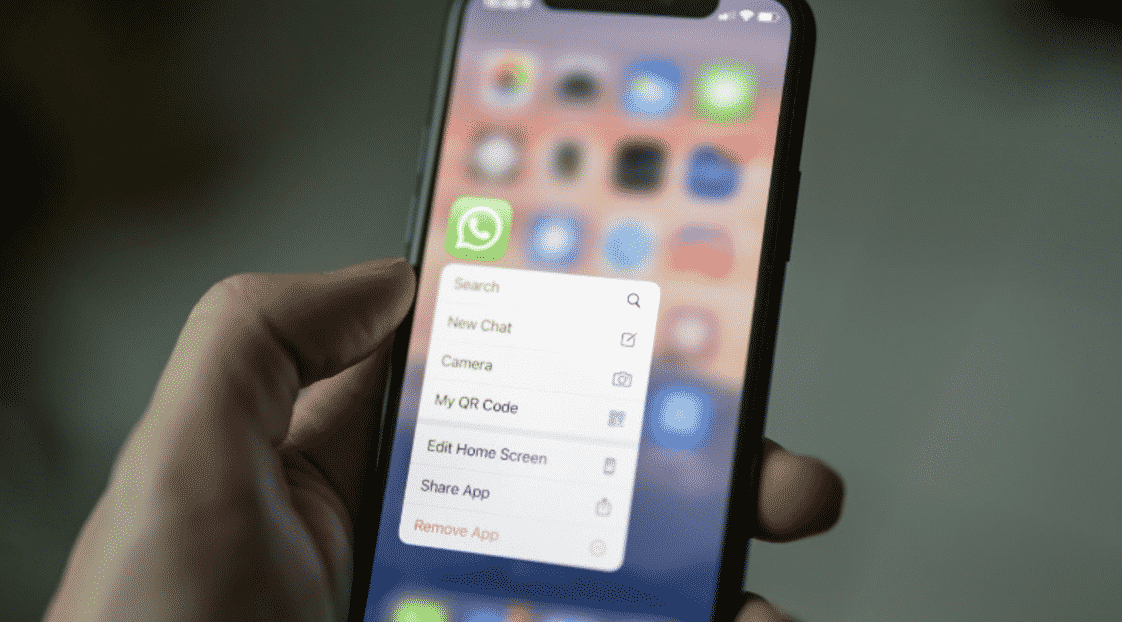
It’s 2021 and WhatsApp – the biggest IM app on the market doesn’t offer a seamless solution to move data from one platform to another. While there are ways to transfer WhatsApp from Android to iPhone, nothing beats MobileTrans to complete the whole process with a single click.
Because of the current scenario, you are bound to lose precious WhatsApp data from switching from Android to iPhone. After all, WhatsApp uses Google Drive on Android and iCloud on iPhone for data backup and these services don’t talk to each other, leaving WhatsApp users in frustration.
Transfer WhatsApp from Android to iPhone
There is a lot to like about the new iPhone lineup. However, WhatsApp’s inability to offer a native transfer tool may hold you back from pressing the Buy button.
Most users rely on WhatsApp and WhatsApp Business to get the job done. And surely, they won’t want to leave messages behind when moving from Android to iPhone. Here is where MobileTrans come in and get the job done in style.
You no longer need to worry about losing those precious WhatsApp messages, the software backup WhatsApp and then restore from Android to iPhone with a single click.
Available for Windows and Mac, MobileTrans not only takes care of WhatsApp messages, but it can also help you transfer Viber, Kik, and WeChat, from iPhone to iPhone.
There are ways to export WhatsApp chat from Android but they are limited in certain aspects. Let us show you MobileTrans in action and then we will move to other methods.
Best Ways to Transfer WhatsApp from Android to iPhone
MobileTrans should be your go-to solution to transfer WhatsApp from Android to iPhone. Follow the step-by-step instructions below.
Method 1. Transfer WhatsApp Chats from Android to iPhone with MobileTrans
MobileTrans overcomes WhatsApp limitations and allows you to restore WhatsApp from Android to iPhone in a few steps.
To transfer WhatsApp Android to iPhone, download the software first.
Wondershare MobileTrans is available on both Windows and Mac. Once you successfully install the app, go through the steps below to begin the WhatsApp transfer process from Android to iOS or vice versa.
Step 1. Open MobileTrans on Windows or Mac.
Step 2. Connect your new iPhone and old Android phone to your PC.
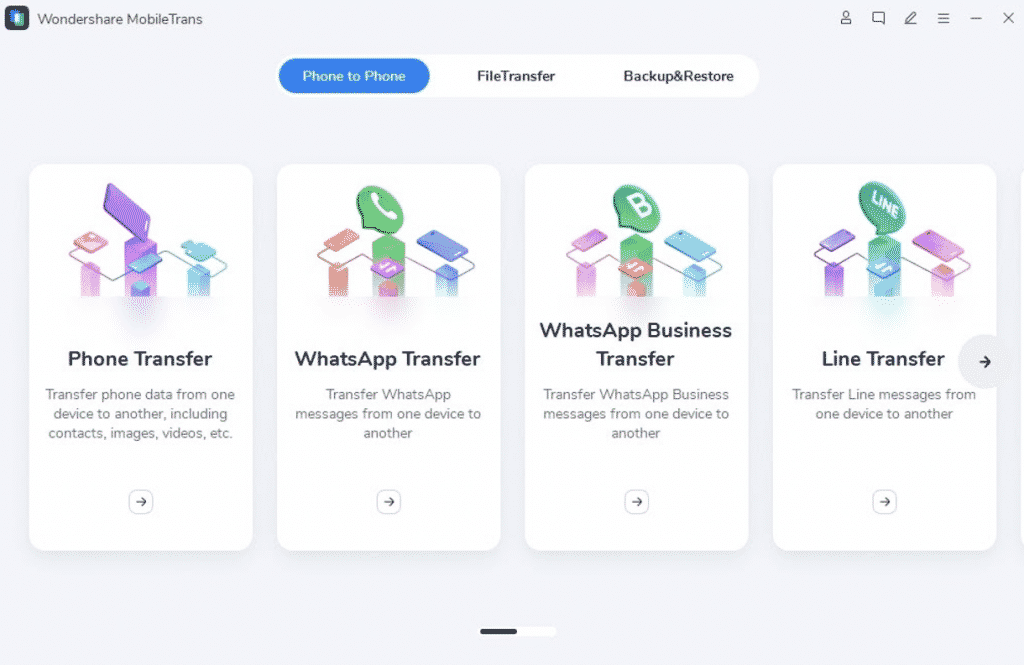
Step 3. Select WhatsApp Transfer from the MobileTrans home.
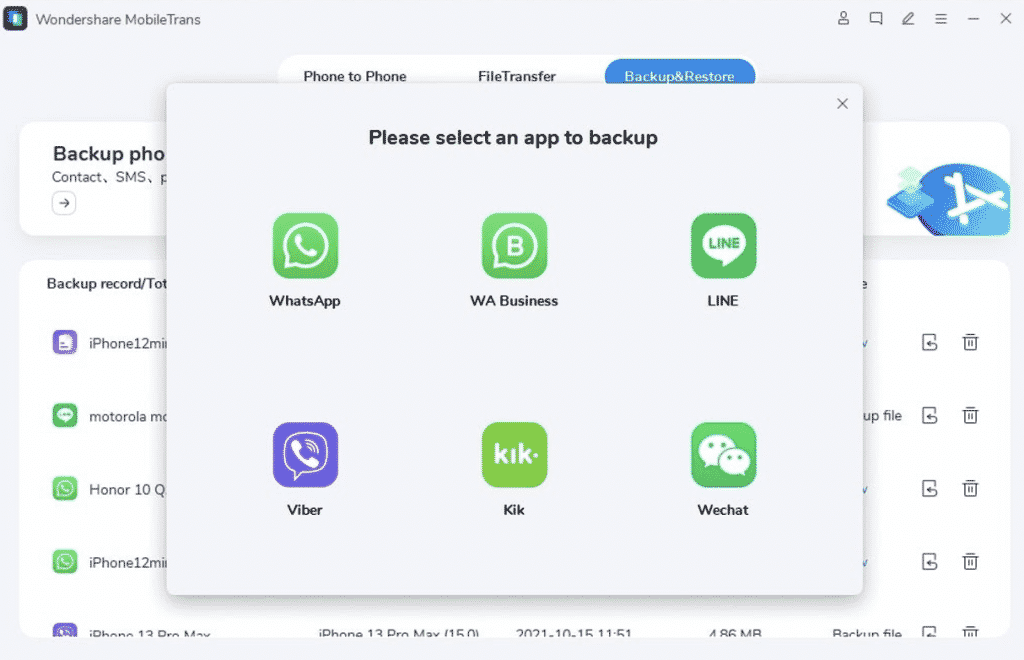
Step 4. Click on WhatsApp from the following menu.
Step 5. Make sure MobileTrans is displaying the correct phones under Source and Destination. If there are any problems with it, click on Flip and change the position.
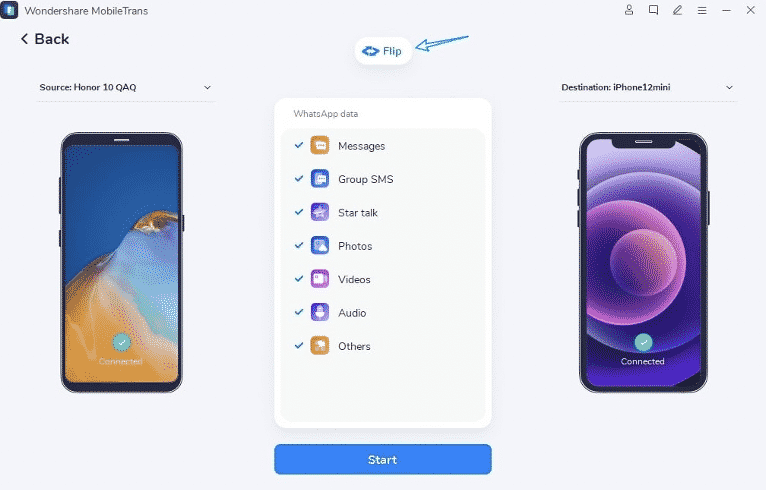
Step 6. Select the type of WhatsApp data you want to transfer and hit the Start button at the bottom.
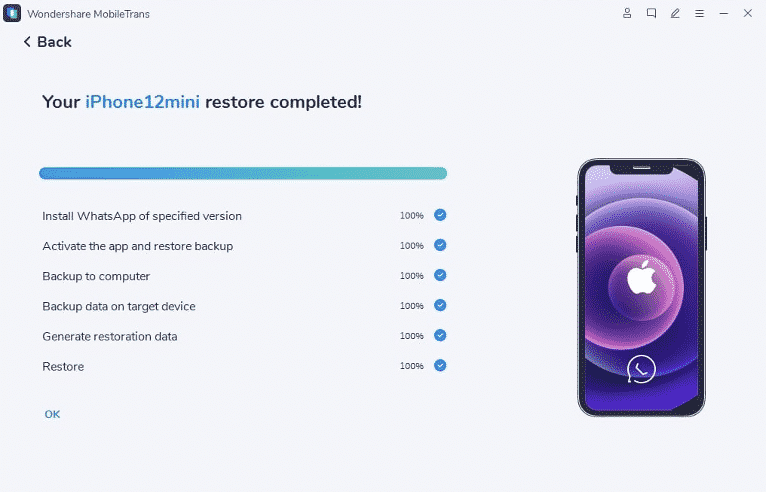
The WhatsApp transfer process will depend on the amount of data you are trying to transfer from Android to iPhone.
If you are already utilizing WhatsApp on iPhone, the existing data will be deleted and MobileTrans will restore the app with WhatsApp data from your old Android phone.
Method 2. Use Export Chat in WhatsApp
WhatsApp allows you to export chat with or without media in read-only mode. Here’s how you can migrate WhatsApp from Android to iPhone using Export chat.
Step 1. Open WhatsApp on Android and tap on a conversation you want to export.
Step 2. Tap on the menu at the top and select More.
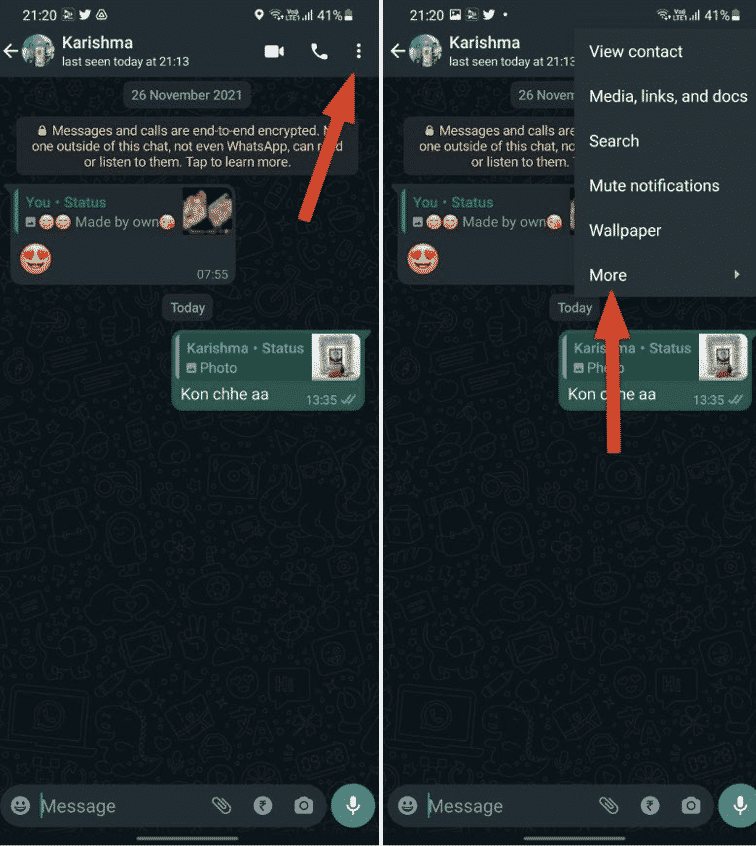
Step 3. Select Export chat.
Step 4. Select how you want to export chat – with media or without media.
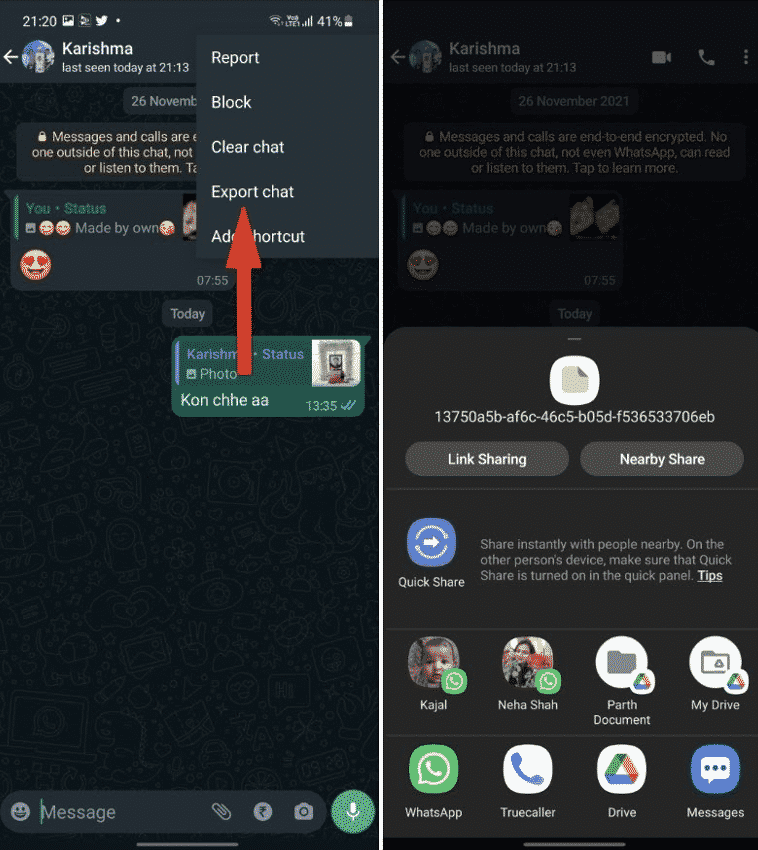
WhatsApp will open the default Android share menu. You can email chat to yourself or save it on Google Drive or OneDrive.
The problem with this method is, you can’t restore WhatsApp messages on iOS WhatsApp app. It stays in a zip file and you can only read the messages in the text (.txt) file. It’s good for keeping a backup only.
Users can also backup entire WhatsApp data on Android using Google Drive. But then again, you won’t be able to restore them to your shiny new iPhone as WhatsApp uses iCloud as backup/restore on Apple devices.
When you use the first method to transfer WhatsApp from Android to iPhone, you don’t face such limitations. Also, MobileTrans isn’t limited to restoring WhatsApp backup from Android to iPhone only
The software comes with a bunch of head-turning features to improve your digital life. Let’s have a look at them.
MobileTrans Features
- Selectively transfer WhatsApp Android to iPhone
- Works flawlessly with WhatsApp Business accounts
- Support for other social medial apps such as Line, Kik, Viber, and WeChat
- Recover accidentally deleted WhatsApp messages
- Backup WhatsApp data on PC
- One-click WhatsApp transfer from Android to iPhone
In short, you have more than enough reasons to get MobileTrans.
MobileTrans Availability and Pricing
MobileTrans is accessible on both Windows and Mac. The pricing starts at $29.99 per year for WhatsApp Transfer or Phone Transfer. You can get a good discount and go with full features $39.99 per year or $49.99 for a lifetime plan. That unlocks the full-feature set that we just talked about in an earlier point.
Wrapping Up: Transfer WhatsApp Chats from Android to iPhone
It doesn’t get any easier than MobileTrans to transfer WhatsApp from Android to iPhone. You no longer need to break the sweat when switching from Android to iPhone. Use MobileTrans and move WhatsApp from Android to iPhone with you.

Angela Spearman is a journalist at EzineMark who enjoys writing about the latest trending technology and business news.
